A standing desk can move perfectly and still feel awkward to use. The monitor may sit too low, cables may pull tight at standing height, your feet may tire before lunch, or the desktop may disappear beneath a laptop, dock, chargers, and loose wires.
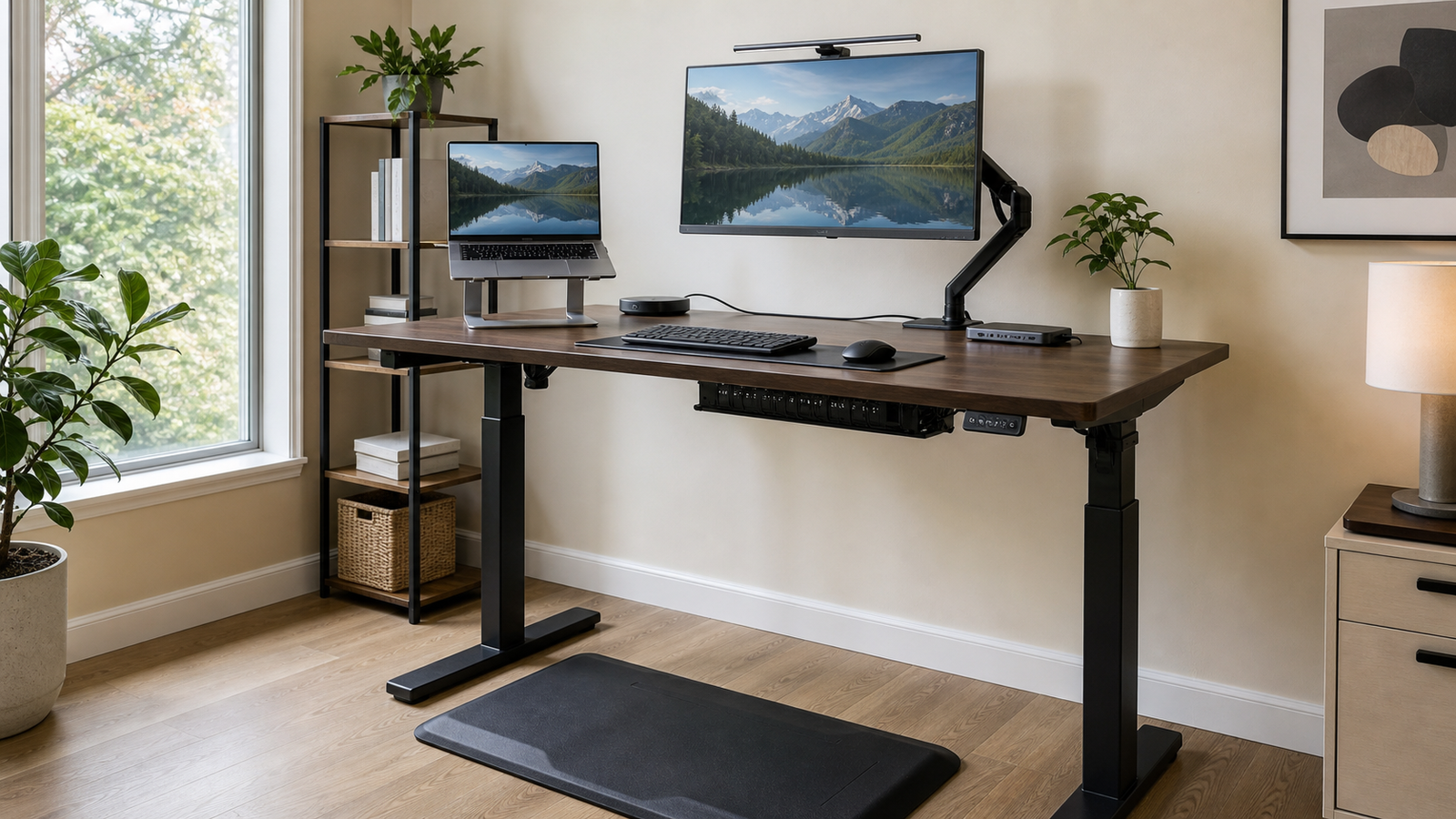
The best standing desk accessories fix those problems without adding more clutter. A monitor arm separates screen height from desk height. A cable tray lets the power strip travel with the desktop. A standing mat encourages more comfortable foot positions. The right laptop stand, keyboard tray, light bar, balance board, or USB-C hub solves a specific limitation rather than merely making the desk look busier.
Start with the problem that interrupts your work most often. The buying order matters more than the number of accessories.
Quick Picks: Best Standing Desk Accessories by Problem
| Pick | Best for | Why it earns desk space | Main tradeoff |
|---|---|---|---|
| Best Monitor Arm: Ergotron LX Desk Monitor Arm | Raising and repositioning one monitor | Separates monitor height from desktop height and clears surface space | A long arm can make desk movement more visible on screen |
| Best Standing Mat: Ergodriven Topo Comfort Mat | People who dislike standing still | Raised terrain gives the feet several positions and encourages movement | Takes more floor space than a flat mat |
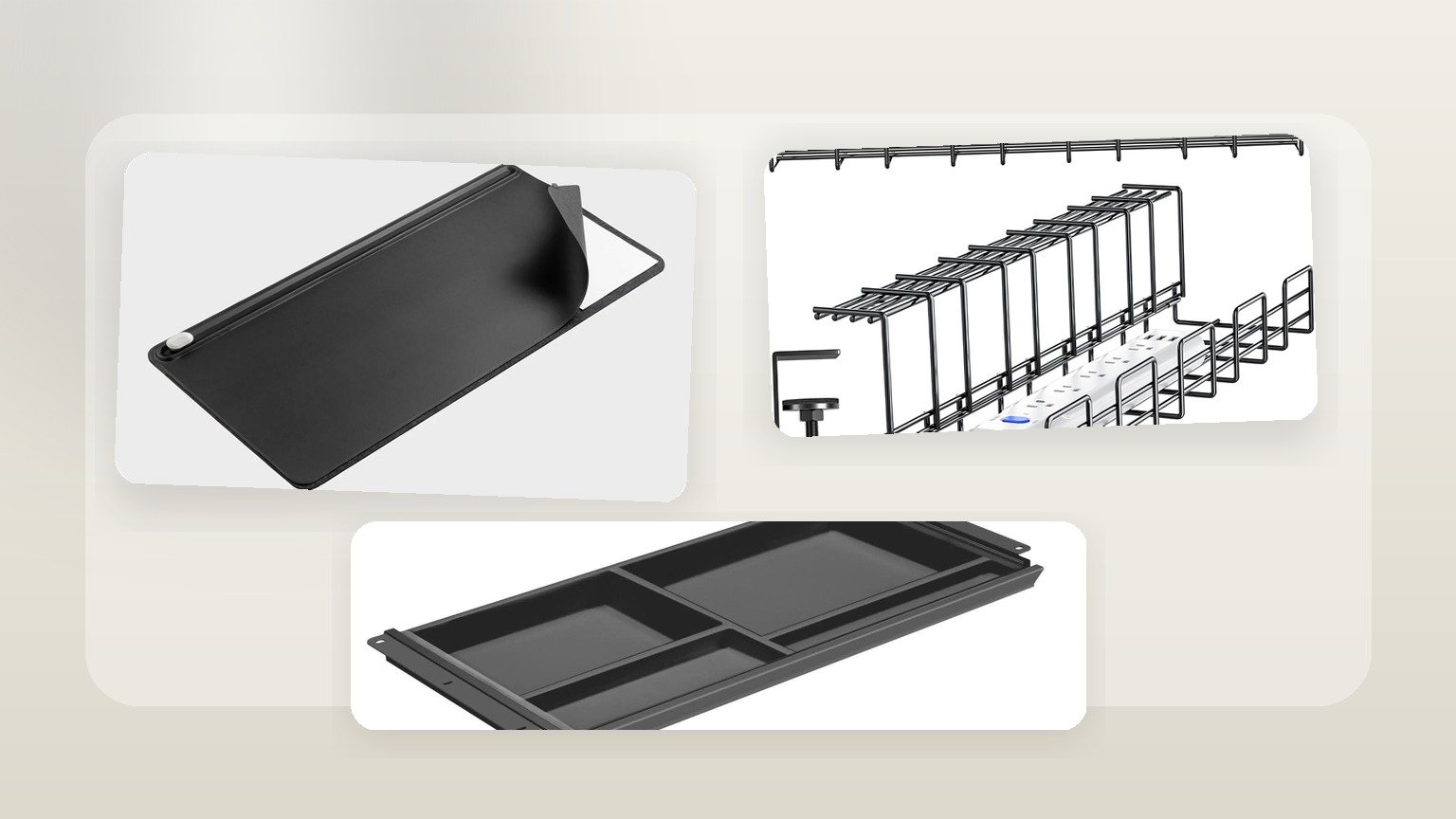
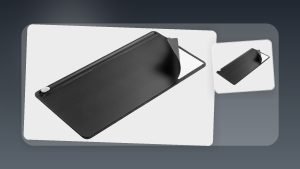
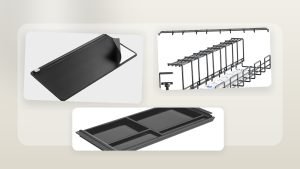
| Best Cable Management Tray: VIVO Under Desk Cable Management Tray | Preventing cables from pulling during height changes | Holds power strips, adapters, and excess cable under the moving desktop | Installation and frame clearance need planning |
| Best Keyboard Tray: HUANUO Adjustable Keyboard Tray | Shallow desktops and lower keyboard height | Moves the keyboard below the work surface and frees desk space | May reduce knee clearance or introduce some flex |
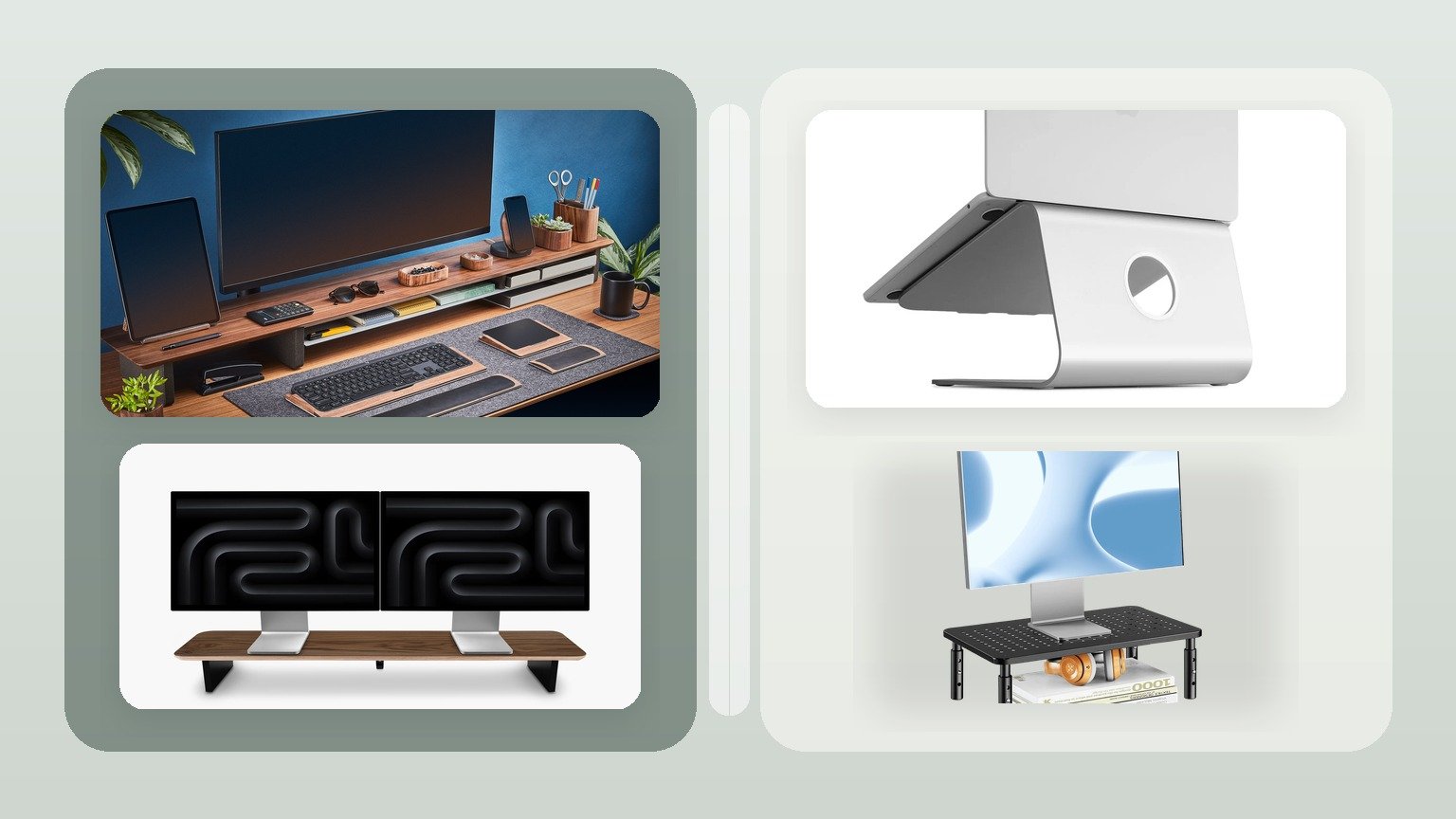
| Best Laptop Stand: Twelve South Curve Flex Laptop Stand | Laptop-first hybrid setups | Raises the screen and folds for travel | Requires an external keyboard and mouse |
| Best Monitor Light Bar: BenQ ScreenBar Halo | Night work and small desktops | Lights the desk without consuming surface space and adds rear ambient light | Premium price for a task light |
| Best Balance Board: FluidStance The Level Balance Board | Adding movement while standing | Creates controlled side-to-side motion instead of static standing | Can distract during precise work and costs more than a mat |
| Best Desk Hub: Anker 553 USB-C Hub | Laptop setups with many connections | Consolidates display, Ethernet, USB, memory card, and charging connections | The short host cable still needs strain-free placement |
If you are starting from an empty setup, buy the monitor arm, cable tray, and mat first. Those three affect posture, safety, and day-to-day comfort every time the desk moves. Add the remaining accessories only when they solve a clear problem in your workflow.
What Makes a Standing Desk Accessory Worth Buying
A useful accessory should remove friction from both sitting and standing positions. If it works only when the desk is raised, then gets in the way when you sit, it is not a complete solution.
Monitor height is a good example. Basic workstation guidance places the screen in front of the user with the top portion around eye level and the keyboard and mouse positioned so the arms can stay relaxed. A height-adjustable desk changes the keyboard height, but it does not automatically place the monitor correctly. A monitor arm or laptop stand handles that second adjustment.
Cable management has a different test: the desk must travel from its lowest to highest position without pulling a plug, pinching a wire, or leaving a loop near the feet. Decorative cable sleeves may hide clutter, but an under-desk tray and a mounted power strip solve the mechanical problem.
Standing comfort is not about staying perfectly still. A mat, board, or footrest should make it easier to shift weight and change position. No accessory replaces movement breaks, and a product that locks you into one stance misses the point of a sit-stand desk.
Compatibility matters before aesthetics. Check monitor weight and VESA pattern, desktop thickness, frame and crossbar clearance, clamp depth, laptop size, available USB-C capabilities, and the path cables take while the desk moves. A well-reviewed accessory that does not fit your desk is still the wrong accessory.
Best Monitor Arm: Ergotron LX Desk Monitor Arm
The Ergotron LX Desk Monitor Arm is the most useful first upgrade for a monitor-based standing desk. It lets the screen move independently from the keyboard surface, making it easier to keep the display at a comfortable height when switching between sitting and standing.
The arm uses a desk clamp or grommet-style mounting approach and supports VESA-mounted monitors within its stated size and weight range. Verify the exact monitor weight without the original stand and make sure the VESA pattern matches before ordering. Curved and ultrawide displays can place more leverage on an arm than their weight alone suggests.
Desk stability matters here. A monitor arm does not necessarily make the frame wobble, but it can amplify small movements. When the desk is high, typing or touching the surface may produce a small movement at the clamp. A long articulated arm turns that movement into a more visible shake at the screen. Keeping the arm reasonably compact and mounting it near a stable part of the desktop helps.
The LX is best for one monitor and for users who regularly reposition the display. Dual-monitor setups may need two arms or a dedicated dual model, but more reach and more screen mass can make movement more noticeable. If your desk is already unstable at standing height, solve that problem before adding a long monitor arm.
Choose the Ergotron LX when screen height, surface space, and flexible positioning matter. Skip it if your display is outside its compatibility range or the desktop cannot safely support a clamp.
Best Standing Mat: Ergodriven Topo Comfort Mat
The Ergodriven Topo Comfort Mat is different from a flat anti-fatigue mat because the surface has raised terrain. The center is relatively open, while the edges and features give your feet places to press, stretch, or rest at different angles.
That design makes sense for a standing desk because the goal is not to find one perfect pose. The goal is to avoid staying frozen in the same position. A flat cushioned mat can make standing softer; Topo adds prompts for movement without requiring you to stop working.
A long-running r/StandingDesk review thread focuses specifically on the Topo concept, and the useful ownership pattern is movement rather than pure softness. People tend to use the raised edges subconsciously, changing foot position while reading, typing, or thinking.
The tradeoff is floor space. Topo is more awkward to slide under a desk than a thin flat mat, and a chair should not roll across its raised terrain. It works best when you can move the mat aside before sitting or when the desk area has enough room for both the mat and chair.
Choose Topo if static standing is what makes you uncomfortable. Choose a simpler flat mat if you need something easy to slide away, use in a tight room, or share with a rolling chair.
Best Cable Management Tray: VIVO Under Desk Cable Management Tray
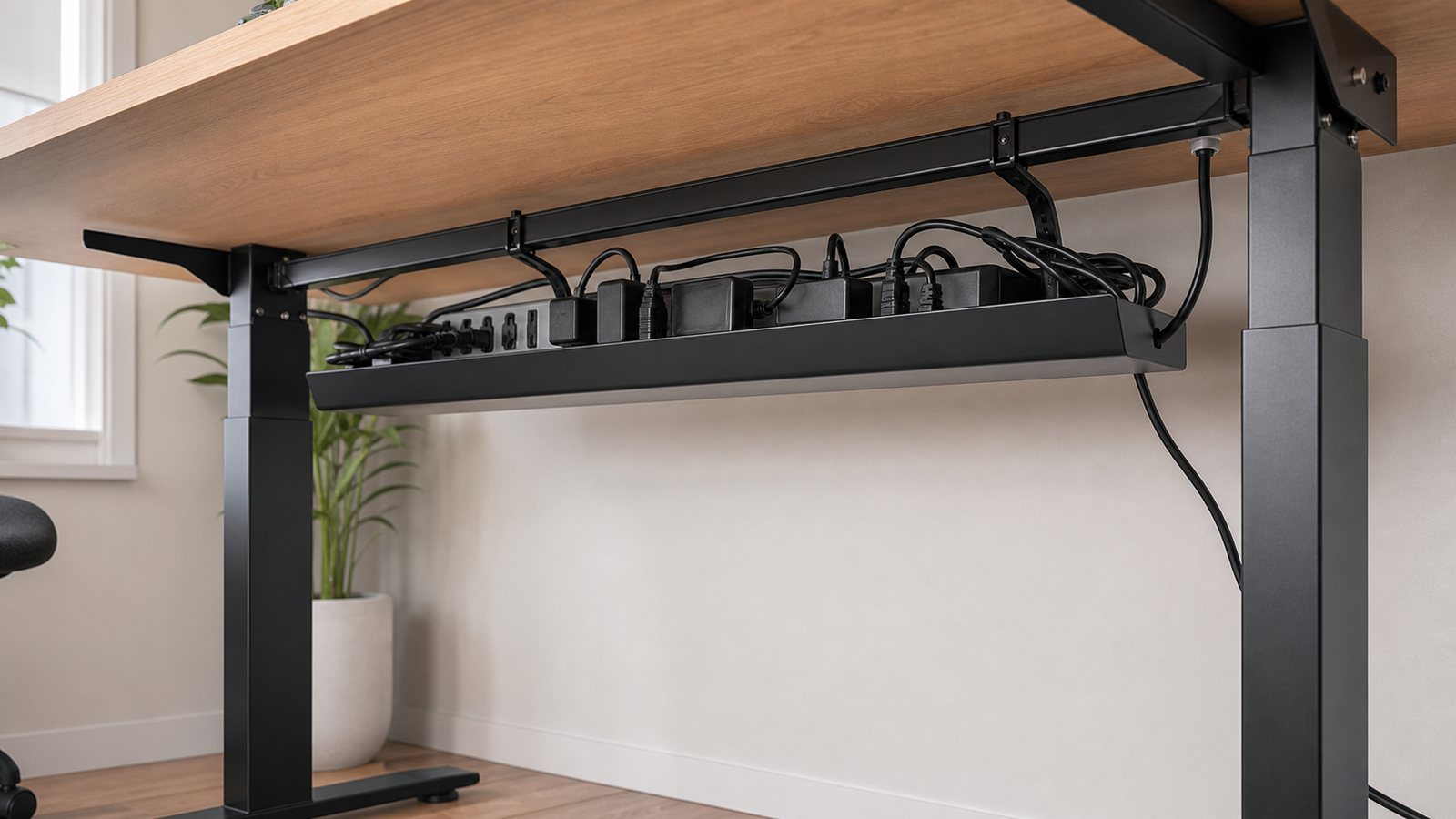
The VIVO Under Desk Cable Management Tray earns a place in this list because cable management is a functional requirement on a moving desk, not just a visual preference. The safest layout treats the power strip, adapters, and device cables as part of the moving desktop.
Mount the power strip and excess cable under the desk, then run one main power lead from the tray to the wall. That lead needs enough slack for the desk’s full height range without dragging across the floor or forming a loop that catches a foot.
The VIVO tray provides space for a power strip, power bricks, and bundled cable. Before installation, check the desk frame, crossbar, control box, and screw length. A screw that is safe for a thick desktop can break through a thinner one, and a tray placed too close to the frame can collide as the desk moves.
A real r/StandingDesk cable-management thread centers on the same practical lesson: test both limits before declaring the job finished. Raise the desk to maximum height, lower it fully, and watch every cable connection. Pay special attention to monitor power, the computer or dock, and the single line running to the wall.
Choose this tray if loose adapters and a floor-level power strip are limiting your setup. Cable clips and sleeves can finish the job, but the tray is the part that removes weight and strain from the moving cables.
Best Keyboard Tray: HUANUO Adjustable Keyboard Tray
The HUANUO Adjustable Keyboard Tray is useful when the desktop cannot be placed at a comfortable keyboard height without making the rest of the setup awkward. It moves the keyboard and mouse below the work surface, which can help on thick desktops or when the monitor needs more height than the keyboard.
The tray also creates extra surface space. A shallow desk can feel crowded once a full-size keyboard and mouse sit in front of a monitor stand. Moving those inputs onto a tray leaves room for notebooks, a laptop, or closer monitor placement.
The fit needs careful measurement. Check desktop thickness, front-edge shape, frame clearance, crossbars, and the space needed for the tray to slide or swivel. Also measure knee clearance in the sitting position. A tray that places the keyboard well but hits your thighs is not an ergonomic improvement.
Standing-desk owners disagree about keyboard trays for a good reason. Some like the lower input height and reclaimed desk space. Others find that the adjustable desk already provides enough height control, while the tray adds flex or movement during typing. The right answer depends on desktop depth and body proportions.
Choose the HUANUO tray if you need a lower keyboard position or a deeper working area. Skip it if the desk already reaches the right elbow height and feels more stable with the keyboard directly on the surface.
Best Laptop Stand: Twelve South Curve Flex Laptop Stand
The Twelve South Curve Flex is the best fit for laptop users who move between home, office, and shared workspaces. It raises the laptop screen, adjusts for different desk heights, and folds down for transport.
A laptop stand solves the screen-height problem only when paired with an external keyboard and mouse. Typing directly on a raised laptop usually moves the hands too high and pushes the screen farther away. Treat the stand as a display riser, not as a typing platform.
The adjustable height is helpful on a standing desk because the relationship between the laptop screen and an external monitor can change when you switch positions. Curve Flex can place the laptop closer to monitor height, reducing the repeated downward glance common in dual-screen laptop setups.
Its main tradeoff is price compared with fixed aluminum stands. The folding mechanism and portability are the reasons to pay more. If the laptop never leaves the desk, a fixed stand may be simpler and more stable.
Choose Curve Flex for a portable laptop-first workstation. Skip it if you type directly on the laptop or need a docked vertical holder rather than an open-screen stand.
Best Monitor Light Bar: BenQ ScreenBar Halo
The BenQ ScreenBar Halo is a monitor-mounted task light for desks where a normal lamp consumes too much space or creates glare. It lights the keyboard and work surface from above the monitor and adds rear ambient light behind the screen.
The front and rear lighting combination is most useful in a dim room. A bright monitor in a dark space creates a strong contrast, while a desk lamp placed at the side can reflect from the screen or move out of position when the desk rises. A light attached to the monitor travels with the desk and keeps the lighting geometry more consistent.
Brightness and color temperature can be adjusted, and the separate controller keeps controls off the monitor. This is a comfort feature, not a medical device; it should not be presented as a cure for eye strain. The practical value is better task visibility and less desktop clutter.
The ScreenBar Halo works best on a compatible monitor with enough top-edge clearance. Webcam placement can become awkward, especially if the camera normally sits in the center of the monitor. Curved monitors and unusually thick backs also deserve a compatibility check.
Choose it for evening work, small desks, and people who frequently write or read documents beside the keyboard. A conventional lamp is better if you need wide room lighting or want light aimed away from the monitor.
Best Balance Board: FluidStance The Level Balance Board
FluidStance The Level turns standing into a more active position by allowing controlled movement under the feet. It is not an exercise board in the aggressive sense; the appeal is subtle side-to-side motion while reading, joining calls, or doing less precise computer work.
That movement can make long standing sessions feel less static. It also changes the nature of the workstation: instead of asking the body to hold one pose, the board gives you a reason to shift and rebalance.
The tradeoff is concentration. Precise mouse work, detailed design tasks, and rapid typing may feel less stable on a moving platform. New users should keep the desk or another stable surface within easy reach and begin with short sessions.
A real r/StandingDesk discussion about FluidStance separates the product experience from concerns about price and the company experience. That is a useful buying lesson. A well-made board can still be a poor value for someone who uses it only during occasional calls.
Choose The Level if you already enjoy standing and want more movement. Start with a mat instead if you are new to standing work, want maximum stability, or are unsure whether motion will distract you.
Best Desk Hub: Anker 553 USB-C Hub
The Anker 553 USB-C Hub is useful in a laptop-based standing desk setup because it consolidates several connections into one USB-C cable. Its port mix covers common needs such as an external display, Ethernet, USB accessories, memory cards, and power-delivery pass-through.
The hub should be treated as part of the cable-management plan. Place or mount it where the host cable reaches the laptop without hanging under tension. Route its display, network, and power cables into the under-desk tray so they move with the desktop.
Compatibility is more important than the total port count. Confirm that the laptop’s USB-C port supports the display resolution, refresh rate, charging requirement, and data features you expect. A hub cannot add video output to a USB-C port that does not support it.
The Anker 553 is a hub, not a full desktop-class Thunderbolt dock. It is a sensible choice for one-cable convenience and mainstream peripherals, but demanding multi-monitor setups may need a more capable dock.
Choose it when repeated plugging and unplugging creates clutter or cable strain. Skip it if the laptop already uses a permanent dock with the ports and display support you need.
What to Skip or Buy Later
Do not buy accessories merely because they appear in polished desk photographs. A large desk mat looks tidy, but it does not solve poor monitor height or unsafe cables. Decorative organizers can make the desktop more crowded if every object earns its own container.
Cheap monitor arms are another false economy when the screen is heavy or the desk is already prone to movement. An arm that drifts, tilts, or requires constant tightening creates more frustration than a stable monitor stand.
Cable sleeves help after the main routing is correct. They do not replace a tray, mounted power strip, and full-height cable test. A tightly bundled cable can look clean while still pulling on a monitor or laptop port.
Keyboard trays deserve patience. Buy one after confirming that the desktop cannot reach a comfortable keyboard position on its own. The wrong tray can reduce knee room, hit the frame, or add a flexible surface to an otherwise stable desk.
Balance boards and premium light bars are later upgrades. They can improve a specific routine, but neither should come before monitor positioning, safe cable travel, or a comfortable standing surface.
Real-World Buying Lessons from Standing Desk Owners
Cable management is the accessory category people tend to underestimate. A desk can look fine at sitting height and become unsafe when raised. Power bricks pull, monitor cables tighten, and a short mains cable can lift a power strip from the floor. Testing the desk at both limits is more important than hiding every wire.
Monitor arms expose stability problems. A screen mounted on a long arm behaves like a lever, so small desktop movement becomes easier to see. Dual displays increase the effect. Keeping arms compact and choosing a stable desk matters more than the arm’s advertised range alone.
Terrain mats such as Topo work because they invite movement without demanding attention. A foot finds an edge, heel rest, or raised area while the user continues working. That experience is different from simply standing on thicker foam.
Keyboard trays are highly personal. They can solve a shallow desk or high work surface, but they can also add flex and reduce clearance. Measuring the desk frame and sitting position matters before buying.
Balance boards are similarly conditional. Some owners enjoy moving during calls and reading; others find motion distracting when writing or working with a mouse. The best accessory is the one that fits the actual task, not the most unusual product.
Final Verdict: The Accessories to Buy First
Start with the Ergotron LX Desk Monitor Arm, VIVO Under Desk Cable Management Tray, and Ergodriven Topo Comfort Mat. Together they address screen position, cable travel, and standing comfort.
Add the HUANUO Adjustable Keyboard Tray when the desktop is too shallow or the keyboard sits too high. Add the Twelve South Curve Flex Laptop Stand and Anker 553 USB-C Hub for a laptop-first workstation.
The BenQ ScreenBar Halo is the lighting upgrade for dim rooms and crowded desktops. The FluidStance The Level Balance Board is worth considering only after you know that movement helps rather than distracts you.
FAQ
What accessories do I need for a standing desk?
Most setups benefit first from a monitor arm or laptop stand, an anti-fatigue mat, and under-desk cable management. Those accessories address screen height, standing comfort, and safe height changes. Add a keyboard tray, monitor light, balance board, or USB-C hub only when it solves a problem specific to your equipment or workflow.
Are anti-fatigue mats worth it for standing desks?
They are often worthwhile when hard flooring or static standing makes the feet uncomfortable. A flat mat provides cushioning, while a terrain mat such as Topo encourages more foot positions. The mat should be easy to move when you sit and should not interfere with a rolling chair.
Do monitor arms make standing desks wobble?
A monitor arm may not create frame wobble, but it can make small movements more visible. The arm acts as a lever, especially when extended far from the clamp or carrying dual monitors. Keep the arm compact, mount it securely, and use a stable desk if screen movement is a concern.
How do you manage cables on a standing desk?
Mount the power strip and excess cable under the moving desktop, then run one sufficiently long power cable to the wall. Keep device cables inside the under-desk tray, protect connection points from tension, and test the desk at both minimum and maximum height before securing the final bundles.
Is a balance board good for a standing desk?
A balance board can make standing more active and works well during calls, reading, or other tasks that tolerate movement. It may be distracting during precise mouse work or focused typing. Begin with short sessions and keep a stable surface within reach until the movement feels natural.